

Connect Cloudflare
Keel reads your Cloudflare account’s member list once a day. It checks that every member who has accepted an invitation has two-factor authentication on, and the same list feeds system access reviews.
The token you create below can do one thing: read the account’s settings and members. It cannot change DNS, Workers, firewall rules or anything else.
Time: about 5 minutes.
Before you start
Section titled “Before you start”- In Cloudflare: you are a Super Administrator on the account, or a member allowed to create account API tokens. Cloudflare only lets you grant a token permissions you hold yourself.
- In Keel: you are an owner or admin of the workspace.
Copy your account ID
Section titled “Copy your account ID”- Sign in to the Cloudflare dashboard and pick the account you want Keel to check.
- Open Account home.
- Press Ctrl + K (Windows, Linux) or Cmd + K (Mac) to open search.
- Type
Copy account IDand select the result. The ID is now on your clipboard.
The account ID is 32 characters, letters a to f and digits only, for example
0123456789abcdef0123456789abcdef. Keep it for the last step.
Create a read-only API token
Section titled “Create a read-only API token”Use an account API token. It belongs to the account rather than to you, so it keeps working if you leave the company.
-
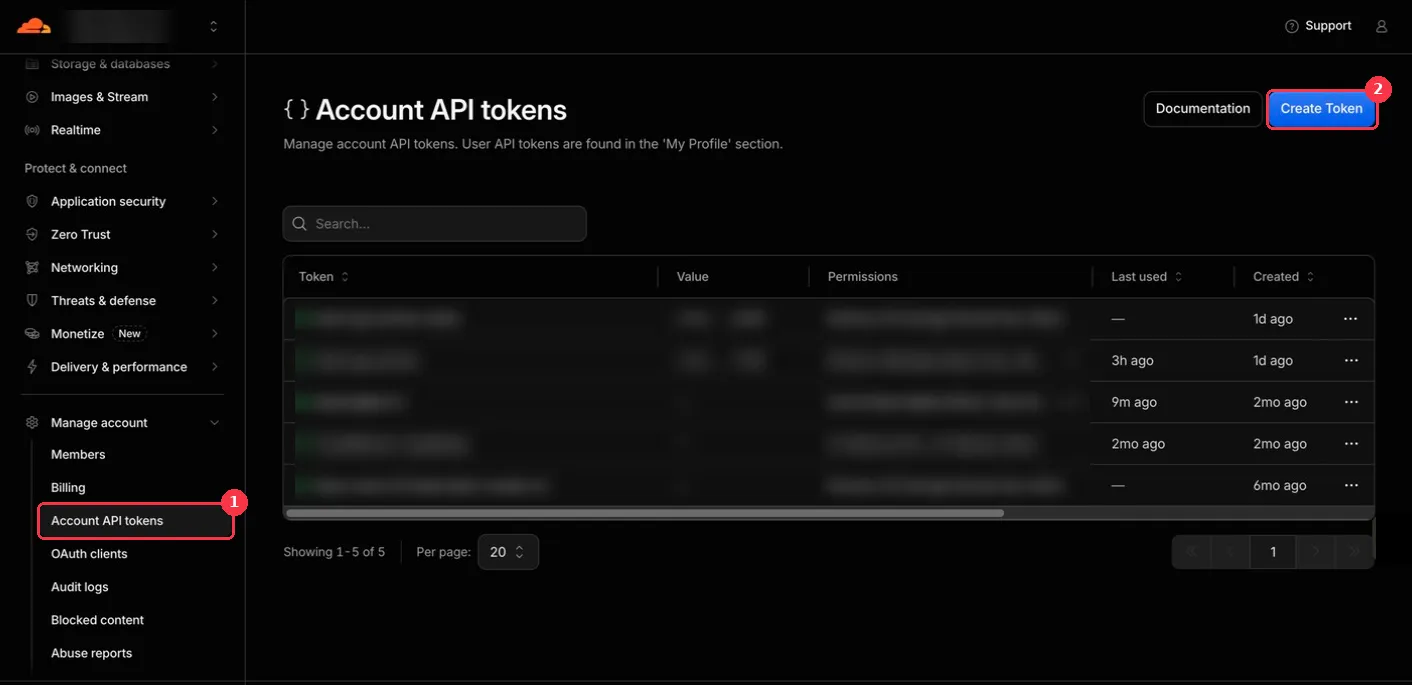
In the left sidebar, go to Manage account > Account API tokens (open it).
-
Click Create Token.
-
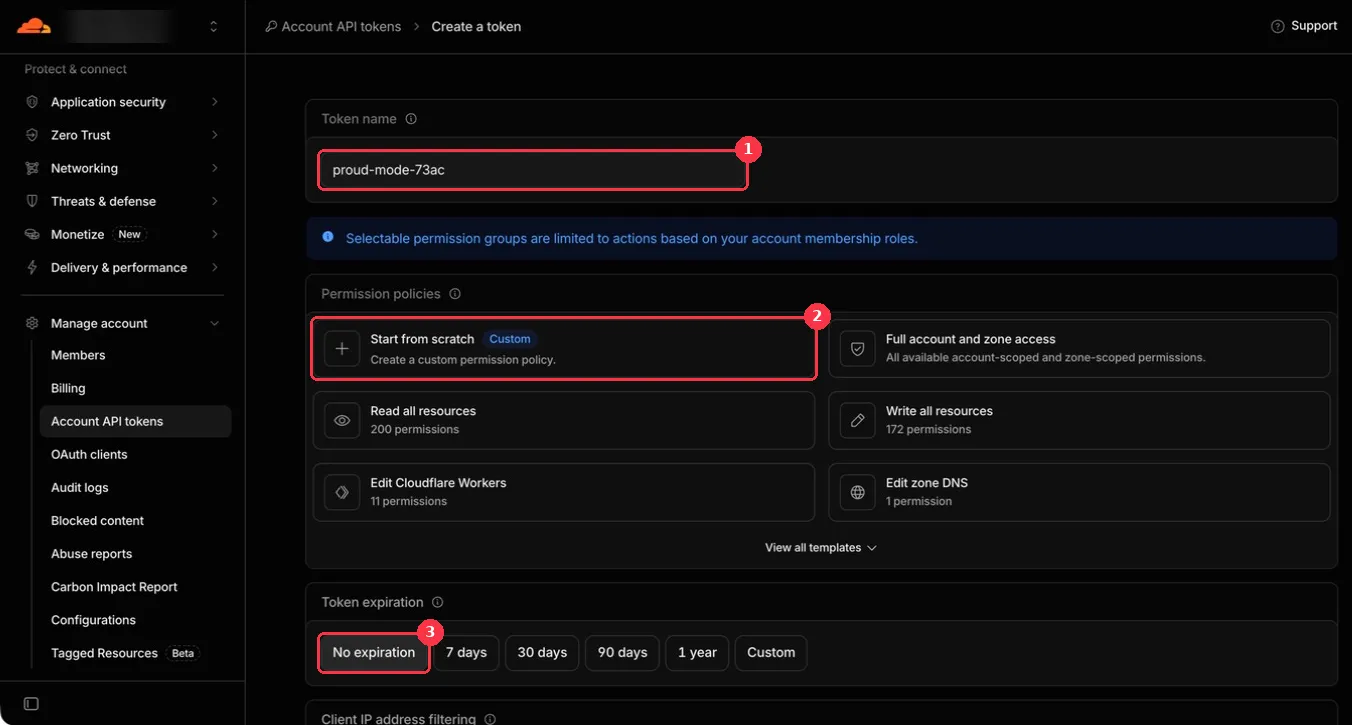
Token name: replace the generated name with
Keel evidence (read-only). -
Under Permission policies, click Start from scratch. Do not pick a template: even Read all resources grants far more than Keel needs.
-
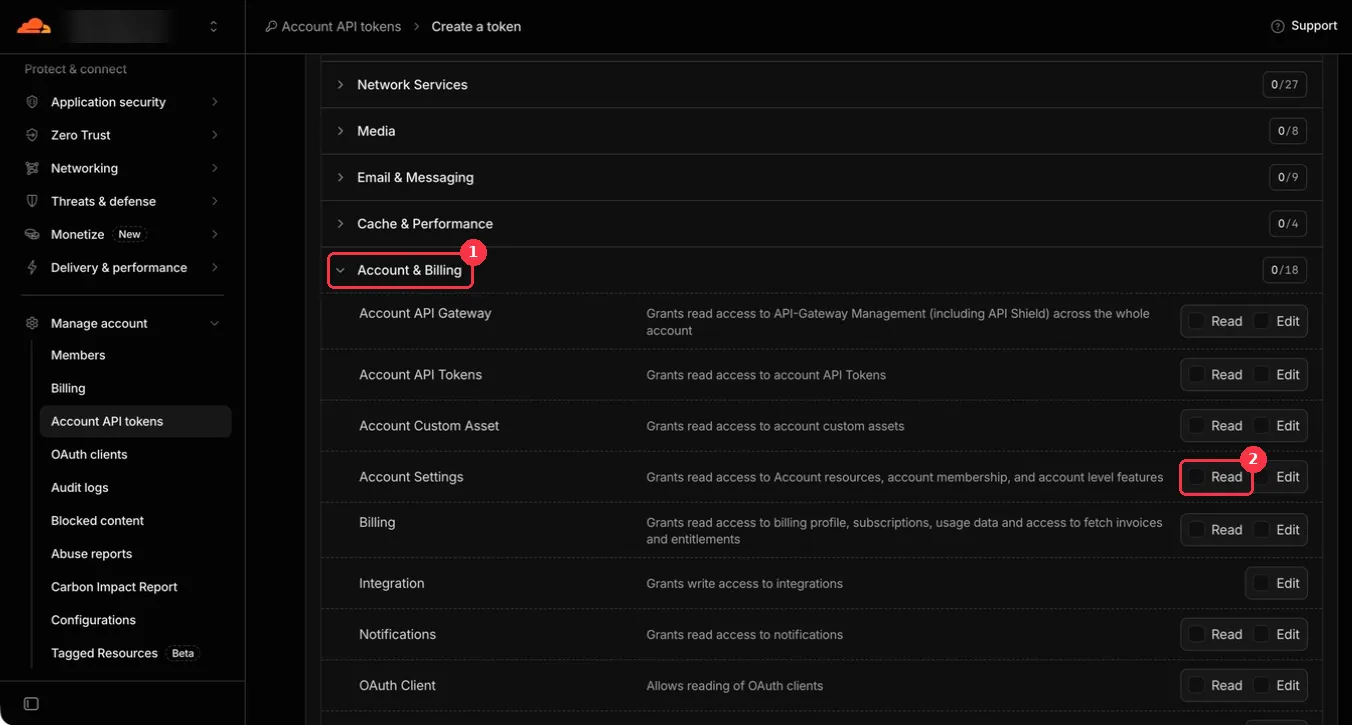
In the policy that opens, leave the scope as Entire Account. Expand Account & Billing, then tick Read on the Account Settings row. Tick nothing else.
-
Token expiration: No expiration, or a period your team will rotate by. When it passes, Keel stops collecting until you reconnect with a new token.
-
Leave Client IP address filtering empty. Keel collects from Cloudflare’s own network, so its address is not fixed.
-
Click Review token. The review should show one permission, Account Settings with Read, on the entire account.
-
Create the token, then copy it. Cloudflare shows it only once.
Account API tokens start with cfat_. If yours starts with cfut_, you created a user token
from My Profile > API Tokens instead. A user token also works, as long as it has the
same single permission on the same account, but it stops working if your own membership is
removed.
Connect it in Keel
Section titled “Connect it in Keel”- In Keel, open Integrations and find the Cloudflare card.
- Click Connect. This opens the Cloudflare Settings tab.
- Account ID: paste the account ID you copied.
- API token: paste the token you copied.
- Click Save connection.
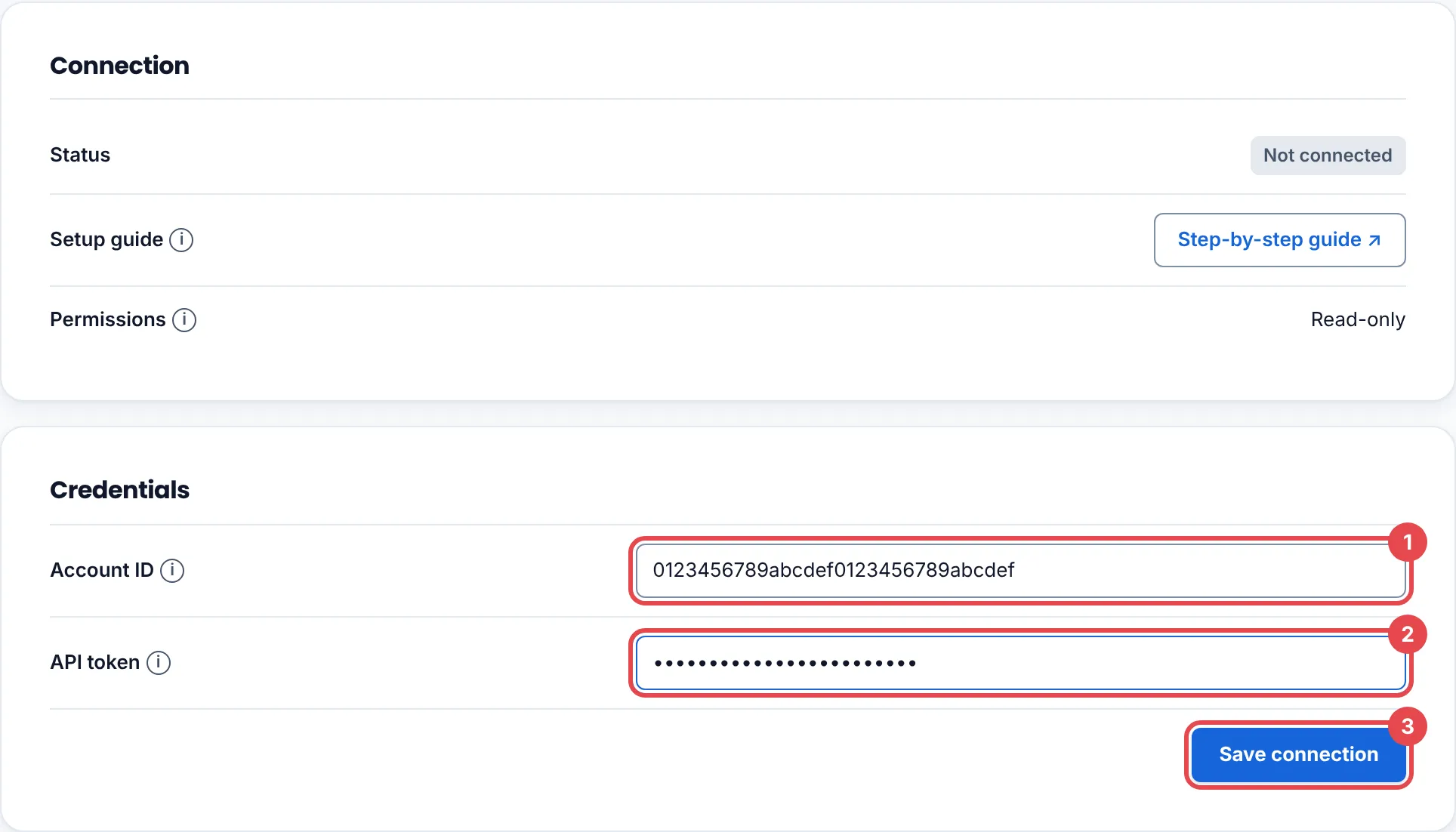
Before it saves anything, Keel asks Cloudflare for the first page of members with your token. Keel then returns you to Integrations:
- Evidence connector connected. Its credential is stored encrypted. means it worked, and the Cloudflare card shows Connected.
- Check the connection details and try again. means Cloudflare refused the token, or the
account ID is not 32 characters of
0to9andatof. Nothing was saved. See Troubleshooting.
See the first findings
Section titled “See the first findings”- Open the Findings tab.
- Click Collect now to run the check straight away. Otherwise the first run happens with the next daily collection.
The check is Account members have two-factor authentication. Its result reads, for
example, 4 of 4 members have two-factor authentication on.
| Result | Meaning |
|---|---|
| Pass | Every accepted member reported two-factor authentication on. |
| Fail | At least one member has it off. The detail says how many. |
| Warn | Nobody has it off, but some members did not report a status. |
| Not supported | Cloudflare declined the member list. The token is missing Account Settings: Read on this account. |
| N/A | Keel could not read the list at all, for example Couldn't read the account members (HTTP 401). The token was deleted, expired or rolled. |
Pending invitations are left out. An invitee holds no access until they accept.
Troubleshooting
Section titled “Troubleshooting”| What you see | What to do |
|---|---|
| Check the connection details and try again. | Check three things: the account ID is the 32-character ID from Copy account ID, not a zone ID; the token was copied whole, with no space at either end; and the token’s summary in Cloudflare shows Account Settings: Read on this same account. Then connect again. |
| That source is already connected to another Keel workspace, so it was not connected here. | One Cloudflare account can be connected to one Keel workspace. Disconnect it in the other workspace first. |
| Not supported or N/A on the Findings tab | The token lost Account Settings: Read, expired, or was deleted. Create a new token, click Disconnect on Keel’s Settings tab, and connect again. |
| Connecting is off until INTEGRATIONS_KEK is set. | Keel’s credential vault is not configured on this server. Contact Keel support. |
Rotate or remove access
Section titled “Rotate or remove access”- Rotate: create a new token, click Disconnect on Keel’s Settings tab, then connect again with the new token. Delete the old token in Cloudflare.
- Remove: click Disconnect in Keel, which destroys the stored token. Then, in Cloudflare, open Manage account > Account API tokens, click … next to the token and choose Delete.
Keel stores the token encrypted per workspace and never shows it again, to you or anyone else. See How credentials are stored.