

Connect Neon
Keel reads your Neon organization’s member list once a day and checks that Organization members have MFA: every member has it on, or the organization requires it. The member list, plus collaborators on projects you name, also feeds system access reviews.
Neon API keys cannot be limited to reading. Keel sends only read requests with the key, and stores it encrypted.
Time: about 5 minutes.
Before you start
Section titled “Before you start”- In Neon: you are an Admin of the organization. Only admins can create organization API keys.
- In Keel: you are an owner or admin of the workspace.
Copy your organization ID
Section titled “Copy your organization ID”- Sign in to the Neon Console.
- Switch to your organization with the organization menu at the top left.
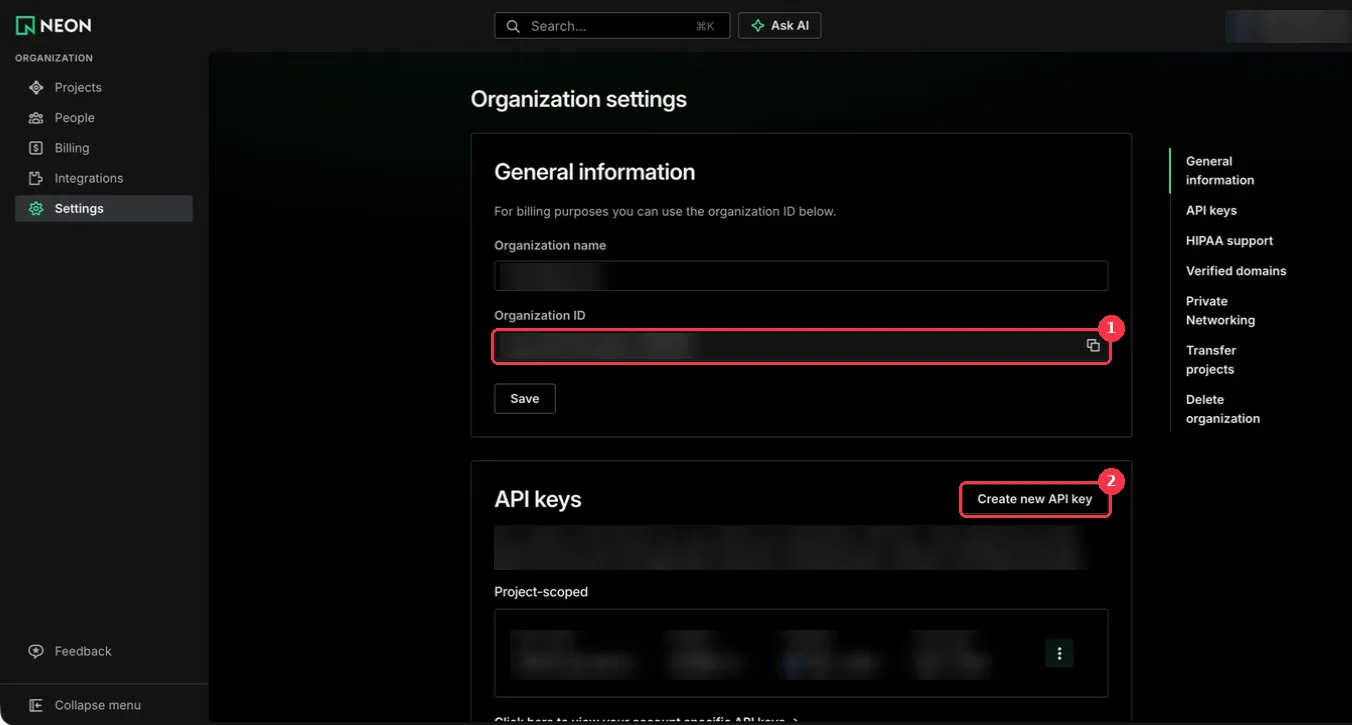
- In the left menu, click Settings. Under General information, click the copy icon at the
end of Organization ID. It looks like
org-example-12345678.
Create the organization API key
Section titled “Create the organization API key”-
Still on Settings, scroll to API keys.
-
Click Create new API key. Create an organization key, not a project-scoped one.
-
Name:
keel-evidence. -
Click Create, then copy the key. Neon shows it only once.
Optional: list project collaborators
Section titled “Optional: list project collaborators”People can reach a Neon project as collaborators without being organization members. To include
them in access reviews, note the IDs of up to the number of projects the form allows. A project
ID is under the project’s Settings > General, for example young-river-12345678.
Connect it in Keel
Section titled “Connect it in Keel”- In Keel, open Integrations, find the Neon card and click Connect.
- Under Credentials, fill in:
- Organization ID: the ID you copied.
- Organization API key: the key you copied.
- Projects to list collaborators for (optional): project IDs separated by commas, or leave blank.
- Click Save connection.
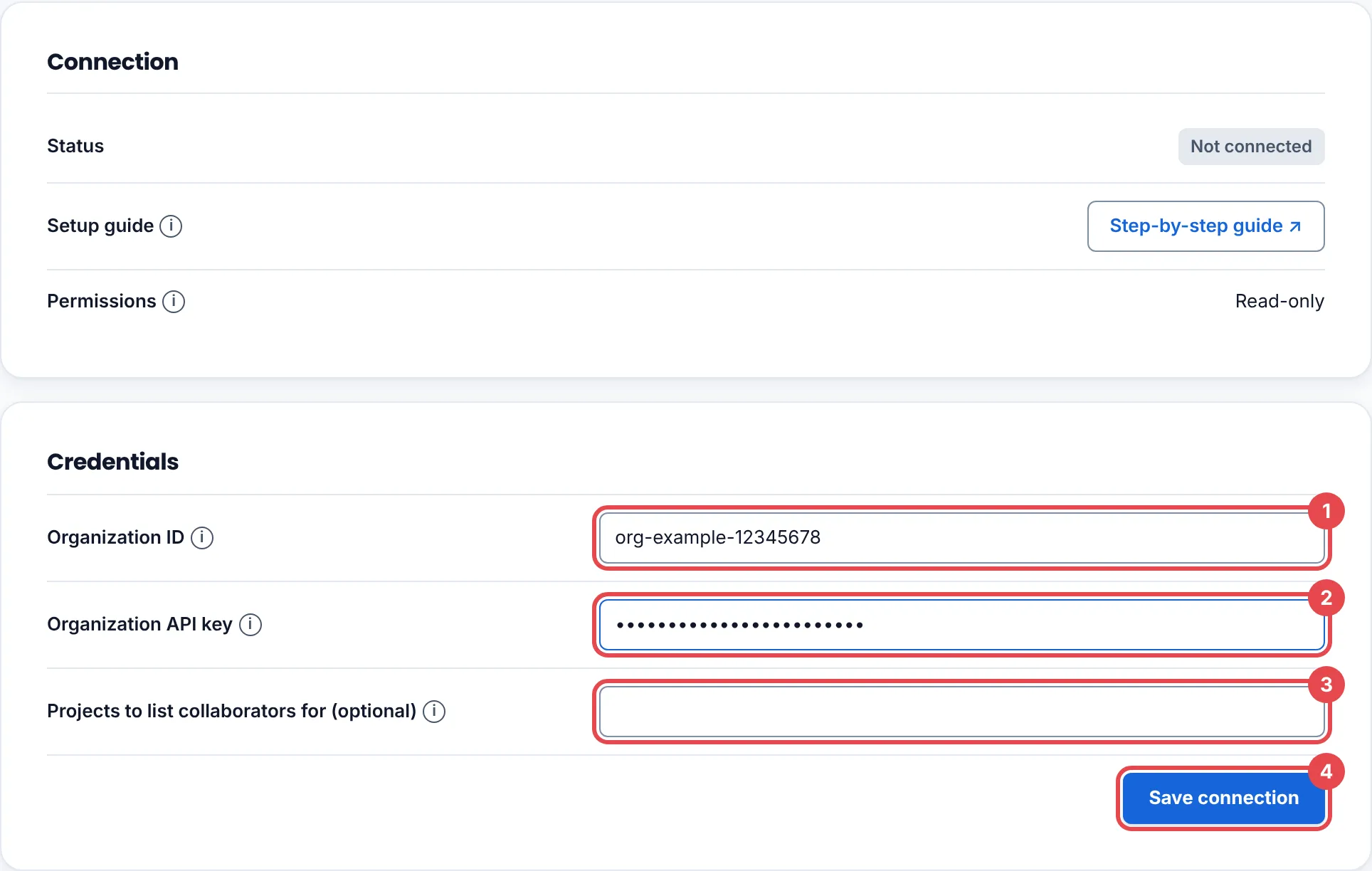
Evidence connector connected. Its credential is stored encrypted. means it worked.
See the first findings
Section titled “See the first findings”Open the Findings tab and click Collect now, or wait for the next daily run.
Troubleshooting
Section titled “Troubleshooting”| What you see | What to do |
|---|---|
| Check the connection details and try again. | The key is a personal or project-scoped key, the organization ID is wrong, or a project ID has a typo. Create an Organization key and check each ID. |
| That source is already connected to another Keel workspace, so it was not connected here. | One Neon organization can be connected to one Keel workspace. Disconnect it there first. |
Rotate or remove access
Section titled “Rotate or remove access”- Rotate: create a new organization key, disconnect and reconnect in Keel, then revoke the old key under Settings > API keys.
- Remove: click Disconnect in Keel, then revoke the key in Neon.